

How to Save TikTok Videos as Live Photos on iPhone
Save TikTok videos as Live Photos
TikTok has millions of entertaining videos, and sometimes you may want to keep a particular clip on your iPhone in a more interactive format. Instead of saving only a normal video, iPhone users may be able to Save TikTok videos as Live Photos when the Live Photo option is available in TikTok’s sharing menu.
A Live Photo is different from a regular picture because it captures a short amount of motion and audio around the image. Apple allows Live Photos to be edited, played with effects and converted back into videos when needed.
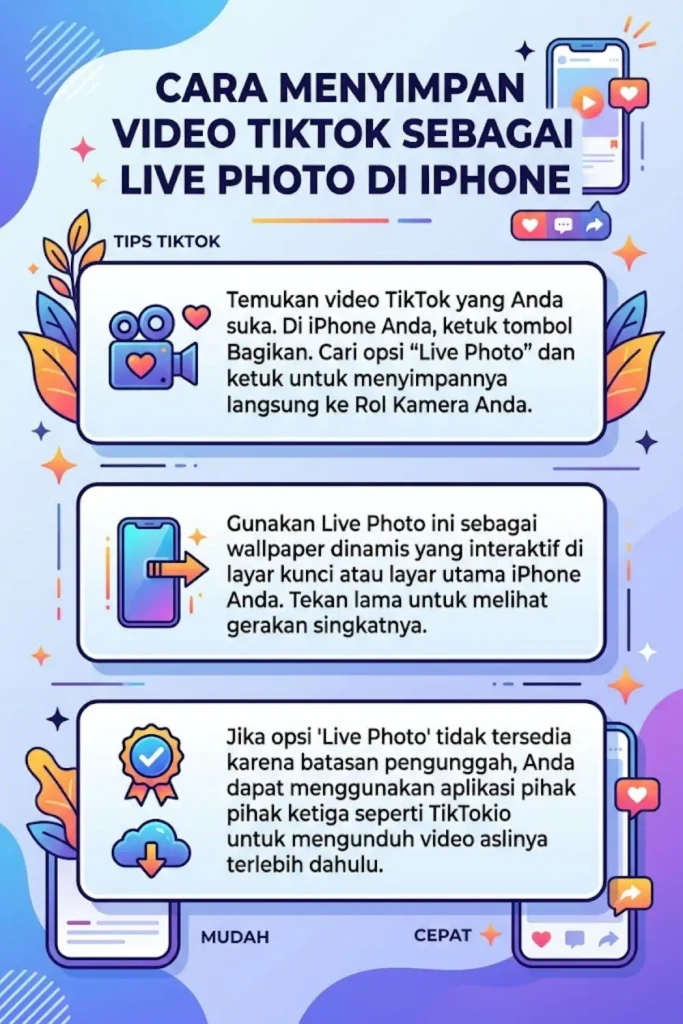
In this guide, you will learn how to Save TikTok videos as Live Photos on an iPhone, where to find the saved Live Photo, what to do if the option is missing and how TikTokio can be used when you simply want to download the original TikTok video.
What Is a TikTok Live Photo?
A TikTok Live Photo is a Live Photo created from TikTok content when the option is available. It can contain a still image together with a short moving section and audio.
This makes the saved content different from an ordinary JPG image or MP4 video. Apple’s Live Photo system allows you to press and hold the image in the Photos app to play its motion.
Live Photos can also be edited after saving. You can change the key photo, trim the motion, mute the audio or apply effects such as Loop and Bounce.
How to Save TikTok Videos as Live Photos on iPhone?
If the TikTok video provides the Live Photo option, you can try saving it directly from the TikTok app.
Step 1: Open TikTok
- Launch the TikTok app on your iPhone and find the video you want to save.
- Make sure you have permission to save and use the content, especially if you plan to repost or publish it somewhere else.
Step 2: Tap the Share Button
- Open the video and tap the Share button.
- TikTok provides different sharing and saving options through this menu. Available options can vary depending on the video, account settings and app version.
Step 3: Look for Live Photo
- Scroll through the available sharing options and look for Live Photo.
- If the option is available, tap it to begin saving the TikTok content as a Live Photo.
Step 4: Wait for the Save Process
- Allow TikTok a moment to process the content.
- After the process finishes, open the Photos app on your iPhone to find the saved item.
Step 5: Find the Live Photo
- Open Photos and look in your recent photos or the Live Photos media type.
- Apple stores Live Photos in the Photos library, where they can be opened and played by touching and holding the image.
How to Check If the TikTok Was Saved as a Live Photo
Sometimes an image may look like an ordinary picture even though it contains motion.
To check it:
- Open the Photos app
- Find the saved TikTok image
- Look for the Live Photo indicator
- Touch and hold the image
- Check whether the image plays a short motion
- Turn the sound on if you want to hear the Live Photo audio
If it moves when you touch and hold it, the file has been saved as a Live Photo rather than as an ordinary still image.
What to Do If Live Photo Is Not Available on TikTok
The Live Photo option may not appear for every TikTok video. TikTok’s available download and sharing options can depend on the content and settings.
If you do not see Live Photo, first try these steps:
- Update TikTok from the App Store
- Close and reopen TikTok
- Open another public TikTok video
- Check the Share menu again
- Make sure you are using an iPhone
- Check whether the creator has restricted downloading or sharing
- Try the process again with another video
TikTok’s support documentation confirms that downloading content is subject to the available download settings for posts.
Can You Convert a Normal TikTok Video Into a Live Photo?
Saving a TikTok as an MP4 and having a true Live Photo are two different things.
A downloaded TikTok video is a video file. A Live Photo is a different type of media item in the Apple Photos system. Therefore, simply downloading an MP4 does not automatically make it a Live Photo.
If you already have the TikTok video saved on your iPhone, you can use a compatible third-party Live Photo app to convert the video into a Live Photo. Some current iPhone apps provide video-to-Live-Photo conversion and export the result back to Photos.
How to Save a TikTok Video With TikTokio?
If your goal is to save the TikTok video rather than specifically create a Live Photo, a web-based downloader can be another option.
With TikTokio, the general process is:
- Open TikTok on your iPhone.
- Find the video you want to save.
- Tap Share.
- Select Copy Link.
- Open TikTokio in your browser.
- Paste the TikTok video URL.
- Select the available download option.
- Save the resulting file to your device.
TikTokio is a third-party tool and is not an official TikTok service. Download availability and output quality can depend on the source video, connection and service availability.
If you specifically need a Live Photo, use TikTok’s available Live Photo option or a compatible video-to-Live-Photo method rather than assuming every downloaded MP4 will become a Live Photo automatically.
Live Photo vs TikTok Video
| Feature | Live Photo | TikTok Video |
|---|---|---|
| Media type | Live Photo | Video |
| Motion | Short motion | Full video |
| Audio | Can contain audio | Usually contains audio |
| Stored in Photos | Yes | Yes |
| Can be edited in Photos | Yes | Yes |
| Can be converted to video | Yes | Already a video |
| Suitable for Live Photo features | Yes | Requires conversion |
Apple also provides a built-in option to turn a Live Photo into a video. Open the Live Photo in Photos, tap the More button and choose Save as Video. The original Live Photo remains available in the Photos library.
How to Turn a Saved Live Photo Into a Video?
You may eventually want to use your saved Live Photo as a normal video.
On supported iPhones:
- Open the Photos app
- Find the Live Photo
- Open it
- Tap the More button
- Select Save as Video
- Find the new video in your Photos library
Apple confirms that the Live Photo remains available after the video is created.
Tips for Saving TikTok Live Photos
Keep these points in mind when you Save TikTok videos as Live Photos:
- Use the latest available version of TikTok
- Make sure your iPhone has enough storage
- Check the Photos app after saving
- Use the Live Photo indicator to confirm the format
- Remember that not every TikTok may offer the same sharing options
- Do not assume an MP4 download is automatically a Live Photo
- Respect the original creator’s rights when saving or sharing content
- Avoid uploading copyrighted content elsewhere without appropriate permission
Why Save TikTok Videos as Live Photos?
There are several reasons iPhone users may prefer a Live Photo:
- It can preserve a short moving moment
- It works naturally inside the Photos app
- You can use Live Photo editing features
- You can change the key photo
- You can apply Loop or Bounce effects
- You can later convert the Live Photo into a video
- It can be easier to organize alongside other Live Photos
The main advantage is that a Live Photo combines a still image with a short amount of motion rather than behaving exactly like a standard video.
Frequently Asked Questions
Can I save every TikTok video as a Live Photo?
No. The Live Photo option may not be available for every TikTok video. The available options can depend on the video and TikTok’s current features and settings.
Where are saved TikTok Live Photos stored?
A saved Live Photo should appear in the iPhone Photos app. You can also find Live Photos through the Live Photos media category.
Does a TikTok Live Photo have sound?
A Live Photo can include audio along with its short motion. You can check the saved item by opening it in Photos and touching and holding it.
Can I turn a Live Photo into a video?
Yes. Apple’s Photos app provides a Save as Video option for Live Photos.
Can TikTokio create a Live Photo?
TikTokio is primarily used to download TikTok content as available video or audio files. A downloaded video should not be assumed to be a native Apple Live Photo.
What if TikTok does not show the Live Photo option?
Try updating TikTok, reopening the app and checking another video. If the option still does not appear, you can save the video normally and use a compatible video-to-Live-Photo app if you specifically need the Live Photo format.
Conclusion
Learning how to Save TikTok videos as Live Photos can be useful for iPhone users who want to keep short moving moments inside the Photos app. When TikTok provides the Live Photo option, you can use the Share menu and then check the saved item in Photos.
If the Live Photo option is unavailable, saving the TikTok as a normal video is another option. A compatible third-party converter can then be used when you specifically need a Live Photo. For ordinary TikTok video downloads, TikTokio provides a separate web-based downloading method without requiring the content to be converted into a Live Photo.
One Comment