

How to Download TikTok Slideshow With All Photos and Music
Download TikTok Slideshow
TikTok is not limited to short videos and Download TikTok Slideshow. The platform also has photo slideshows where creators combine multiple images with music, effects, captions, and transitions. If you find a slideshow you want to keep, you may want to Download TikTok slideshow content with all of its photos instead of saving only a single image.
Saving a complete slideshow can be useful when you want to keep the images for personal viewing or access them later without opening TikTok. However, the available download options can vary depending on the post, creator settings, device, and current TikTok features.
This guide explains different ways to Download TikTok slideshow posts, how to save all available photos, what happens to music, and how you can use TikTokio when the normal download option is not enough.
What Is a TikTok Slideshow?
A TikTok slideshow is a post that contains multiple photos displayed one after another. Depending on how the creator made the post, TikTok may automatically add music, transitions, text, filters, or other effects.
Unlike a traditional TikTok video, a slideshow can allow viewers to move between individual photos manually or watch them as part of the post.
Common slideshow content includes:
- Travel photos
- Product images
- Tutorials
- Recipes
- Fashion ideas
- Wallpapers
- Photo collections
- Memes
- Step-by-step guides
- Personal photo stories
Because several images can be included in one post, users may want to Download TikTok slideshow content rather than saving each photo individually.
Can You Download a TikTok Slideshow With All Photos?
Yes, depending on the post and the download options TikTok provides. When a creator allows downloads, TikTok may provide options for saving the post. However, the exact options can differ between posts and app versions.
If TikTok provides an option to save the slideshow, check the saved content in your Photos or Gallery app after downloading. Keep in mind that TikTok’s available download features can change, so an option that appears for one slideshow may not appear for another.
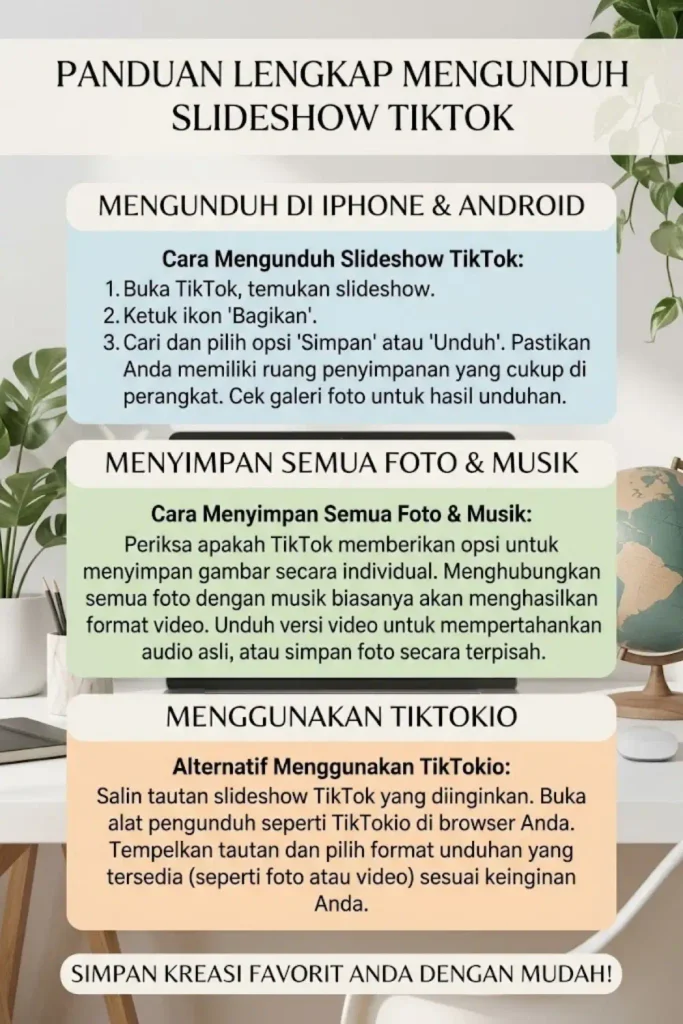
How to Download TikTok Slideshow on iPhone
iPhone users can first try TikTok’s built-in sharing and saving options.
Step 1: Open TikTok
- Open the TikTok app on your iPhone.
- Find the slideshow you want to save and open the complete post.
Step 2: Tap Share
- Tap the Share button on the TikTok post.
- A menu with different sharing and saving options will appear.
Step 3: Check for a Save Option
- Look for an option that allows you to save the content.
- If TikTok provides a download option for that particular slideshow, select it.
Step 4: Check Photos
- After the download finishes, open the Photos app.
- Look at your recent items to see whether the slideshow photos or saved media have been added.
Step 5: Check All Photos
- If the post contains multiple images, check whether all available photos were saved.
- The result can depend on how the slideshow was published and which download option TikTok currently provides.
How to Download TikTok Slideshow on Android?
The process is similar on Android phones.
Follow these steps:
- Open TikTok.
- Find the slideshow you want to save.
- Tap Share.
- Look for the available save or download option.
- Start the download.
- Open your Gallery or Photos app.
- Check the recently saved media.
If only part of the slideshow is saved, another download method may be required.
How to Download TikTok Slideshow With All Photos?
If you want every photo from a slideshow, first check whether TikTok allows the individual images to be saved. Some slideshow posts may expose individual photo-saving options, while others may behave more like a video post.
You can try the following:
- Open the slideshow completely
- Move through each photo
- Check the Share menu
- Look for a save option
- Save available images
- Check your Gallery or Photos app
- Keep the original order of the photos if needed
For a large slideshow, saving images one by one can take more time. A third-party downloader may be more convenient when it supports the particular TikTok post.
How to Download TikTok Slideshow With Music?
Music is one of the main reasons users want to save a complete TikTok slideshow rather than individual photos. A slideshow can contain several images combined with a TikTok sound. However, saving the individual photos does not necessarily save the music with them. If you want both the photos and music together, the final result may need to be saved as a video rather than as separate image files.
A practical approach is:
- Open the original TikTok slideshow
- Check whether the post can be saved
- Save the available version
- Check whether the downloaded file contains the original audio
- If only photos are saved, the music may need to be handled separately
- Avoid assuming that every slideshow downloader preserves TikTok audio
The availability of music can also depend on licensing and the way the original TikTok post was created.
How to Download TikTok Slideshow Using TikTokio?
If the built-in TikTok saving option does not give you the result you need, you can try a web-based TikTok downloader such as TikTokio.
The general process is simple:
- Open TikTok.
- Find the slideshow you want to save.
- Tap Share.
- Select Copy Link.
- Open TikTokio in your browser.
- Paste the copied TikTok URL.
- Start the available download option.
- Save the resulting file to your device.
TikTokio is a third-party tool and is not an official TikTok service. The available output can depend on the source post, TikTok changes, connection quality, and the downloader’s current support for slideshow posts.
If the tool returns a video version, the music may remain part of that video when it is included in the source. Separate photos and audio may not always be available as independent files.
Can You Save All TikTok Slideshow Photos Separately?
It depends on the slideshow and the available saving options.
If individual photos can be accessed, you can save them separately to your device. This can be useful when you only need the images and do not need the music or transitions.
For example, you may want to save:
- Photo 1
- Photo 2
- Photo 3
- Photo 4
- Photo 5
Saving individual images can also make it easier to use them as wallpapers, references, or personal inspiration. However, always consider the creator’s rights before reusing or publishing downloaded images.
What Happens to Music When You Download a Slideshow?
Music and photos are not necessarily saved in the same way. If the slideshow is saved as individual images, those image files will not contain the TikTok music. If the slideshow is downloaded as a video, the audio may remain part of the video depending on how the source content and download method work.
This means there are two different outcomes:
| Download type | Photos | Music |
|---|---|---|
| Individual photos | Yes | No |
| Video version | Included visually | May be included |
| Screenshot | One visible image | No |
| Screen recording | Visible slideshow | May capture audio |
| Third-party download | Depends on tool | Depends on source and tool |
How to Save a TikTok Slideshow as a Video?
If you want the photos and music to remain together, a video version can be more practical. If TikTok provides a video download option, save the post and open the resulting file in your Gallery or Photos app. Another option on supported devices is screen recording. Before using screen recording, make sure you have the right to save and use the content.
A screen recording can capture:
- Photos
- Transitions
- On-screen text
- Music
- Other visible effects
The final quality will depend on your device and the original TikTok post.
Why Can’t I Download a TikTok Slideshow?
There are several possible reasons. The creator may have disabled downloading, the post may have restrictions, or TikTok may not provide the same options for every type of content.
Other possible reasons include:
- The TikTok app needs an update
- The post has download restrictions
- The content is unavailable
- Your internet connection is unstable
- TikTok has changed its saving options
- The downloader does not currently support the post format
- The original post has been deleted or made private
Trying another public slideshow can help determine whether the issue is specific to one post.
Tips for Downloading TikTok Slideshows
Before you Download TikTok slideshow content, keep these points in mind:
- Use the original TikTok post whenever possible
- Check whether downloading is enabled
- Make sure your device has enough storage
- Use a stable internet connection
- Check whether all photos were saved
- Confirm whether music is included
- Keep the original photo order when necessary
- Avoid downloading suspicious files or applications
- Respect the creator’s copyright and usage rights
- Do not repost content without appropriate permission
Download TikTok Slideshow on Computer
You can also save TikTok slideshow content from a computer.
Open TikTok in your browser and find the post you want to save.
Then:
- Open the slideshow.
- Copy the post URL.
- Open a compatible downloader such as TikTokio.
- Paste the TikTok link.
- Check the available download options.
- Start the download.
- Open the downloaded file from your browser’s download folder.
A computer can be useful when you want to organize multiple downloaded files into folders.
Frequently Asked Questions
Can I Download TikTok slideshow posts with all photos?
It depends on the specific TikTok post and the available download options. Some posts allow saving while others may have restrictions.
Does downloading a TikTok slideshow save its music?
Not always. Individual photos do not contain music. A video version may retain audio when the source and download method support it.
Can I Download TikTok slideshow without the TikTok watermark?
The available result depends on the downloader and source post. TikTokio may provide different download options depending on current support and the original content.
Can I save TikTok slideshow photos separately?
Yes, when the individual photos are accessible through TikTok or a compatible method. You can then save them separately to your device.
Can I Download TikTok slideshow on iPhone?
Yes. You can first check TikTok’s built-in save options. If those options are unavailable or limited, you can copy the post link and try a compatible web-based downloader.
Can I Download TikTok slideshow on Android?
Yes. Android users can check TikTok’s own saving options or use a compatible downloader through their browser.
Does TikTokio download every slideshow?
Not necessarily. Support can depend on the TikTok post, source format, TikTok changes, and the downloader’s current functionality.
Conclusion
Learning how to Download TikTok slideshow content can make it easier to keep multiple photos from a TikTok post for personal use. The simplest method is to first check TikTok’s own saving options and confirm whether the complete slideshow is available.
When you want the photos and music together, saving a video version may be more suitable because separate image files cannot contain the original TikTok audio. TikTokio can also be used as a third-party web-based option by copying the TikTok post link and checking the available download formats.